Okay, so you've been grinding Wuthering Waves for a while, but maybe you need to free up some space, or perhaps you're taking a break from the gacha life? 😅 Whatever the reason, uninstalling it from your PC is super straightforward. I recently had to do this myself, and I found there are actually three main methods you can use. Let me walk you through each one, step-by-step, so you can choose the easiest path for you. No tech wizardry needed, I promise! 💻✨
Method 1: The Classic Desktop Shortcut Route 🖱️
This is probably the method most people think of first. It uses the game's own uninstaller.
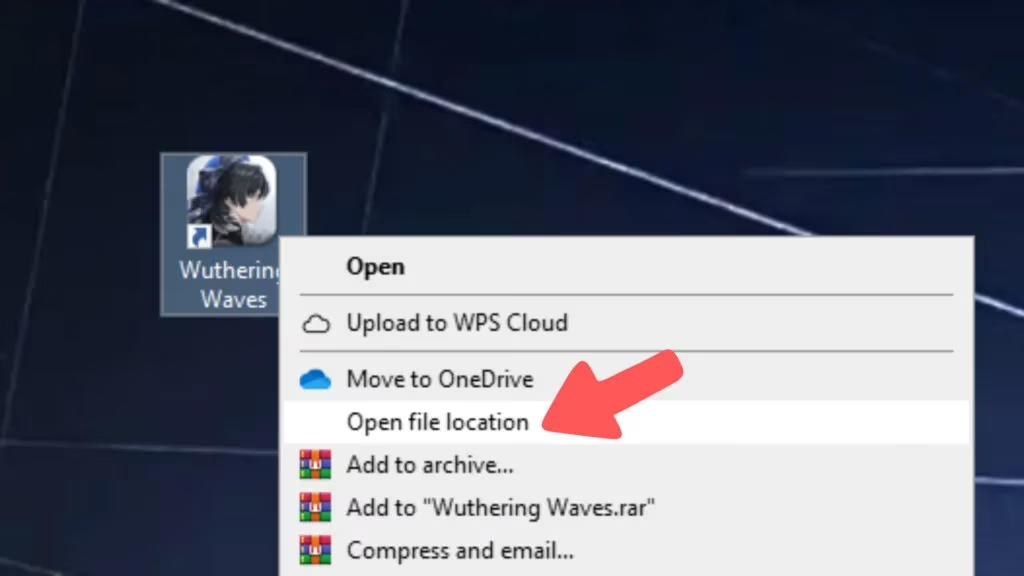
- Find the Icon: First, look for the Wuthering Waves shortcut on your desktop. Right-click on it and select 'Open file location'. This will take you straight to where the game lives on your computer.
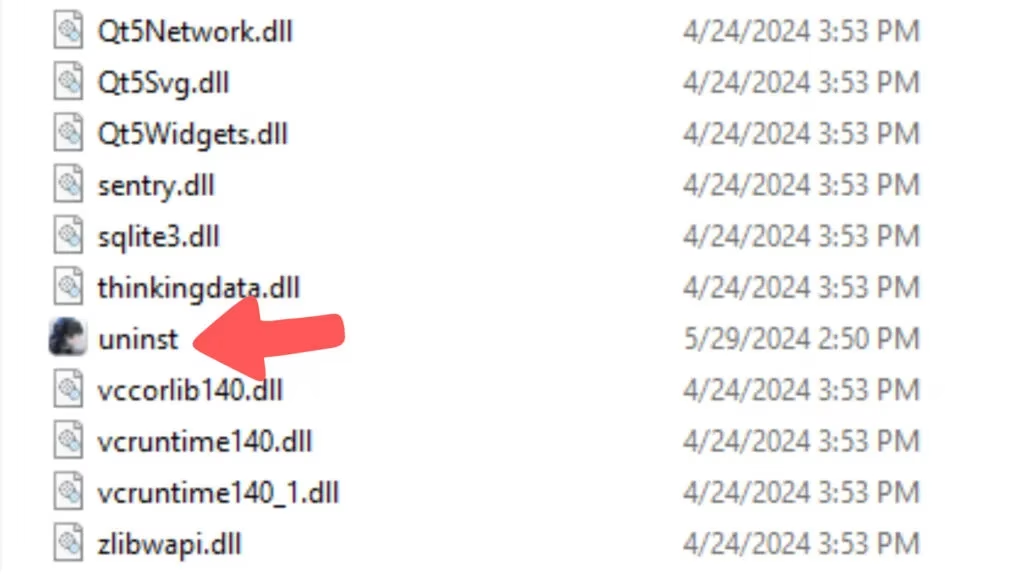
- Find the Uninstaller: Once the folder opens, you'll see a bunch of files. Just scroll down a bit until you spot a file named 'uninst'. That's the magic button! Go ahead and double-click it.
- Confirm & Go: A cute little window will pop up with Yangyang asking if you're sure. It'll say something like, 'Do you wish to remove “Wuthering Waves” and all its components?' Don't worry, she's not judging! Just click 'Uninstall'.
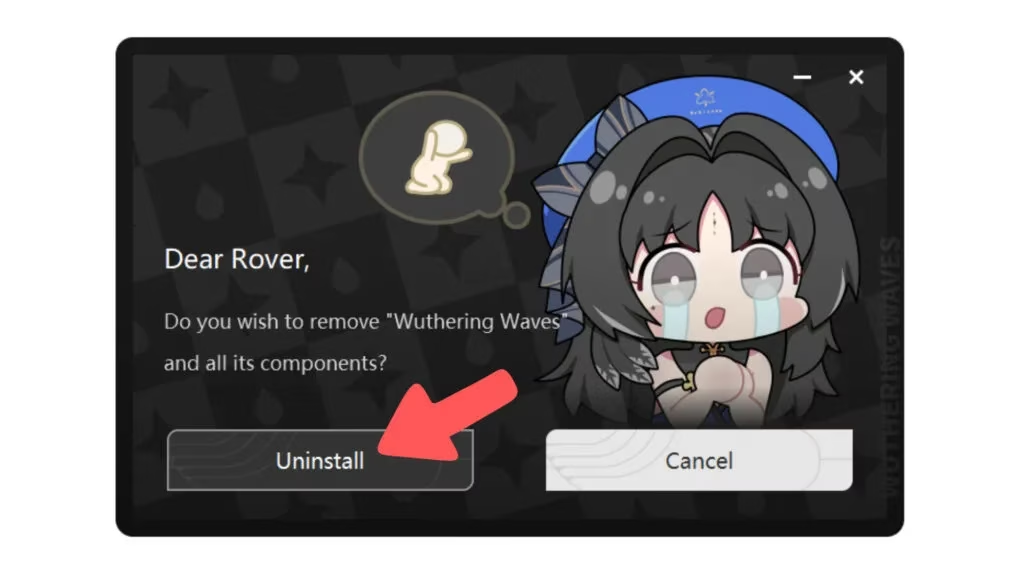
And that's it! The process will run for a minute, and you'll get a final message saying 'Uninstallation complete'. Super clean and official.
Method 2: The Old-School Control Panel Method ⚙️
If you're more of a traditional Windows user, or if the desktop shortcut is missing, this is your go-to.
-
Open Control Panel: You can search for 'Control Panel' in your Windows search bar (usually bottom-left). Alternatively, press
Windows Key + R, typecontrol, and hit Enter. Old-school cool! 😎 -
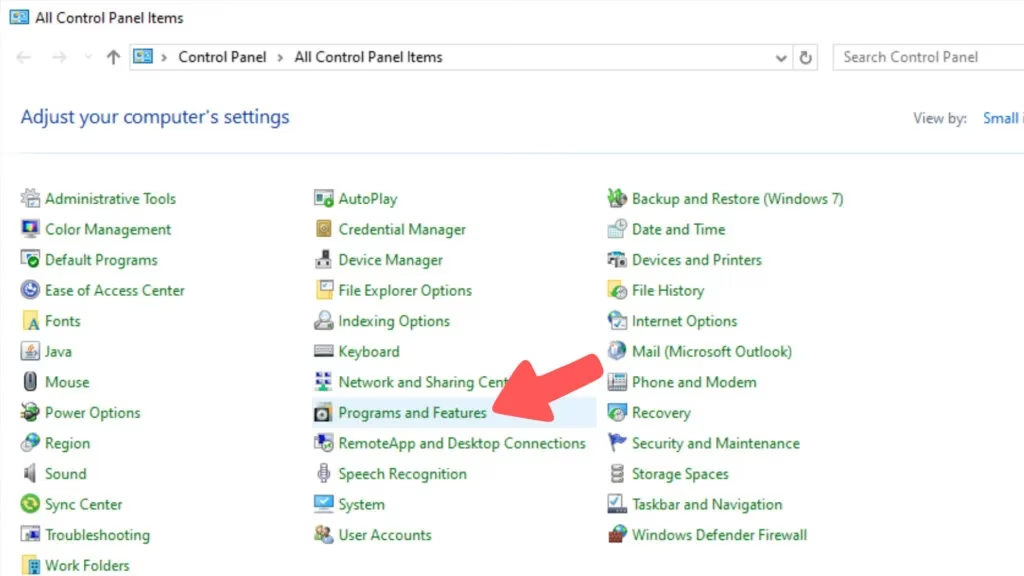
Navigate to Programs: Inside the Control Panel, look for and click on 'Programs and Features'. This is the master list of everything installed on your PC.
- Find & Remove: Now, scroll through the list (or use the search bar at the top-right) to find 'Wuthering Waves'. Right-click on it and select 'Uninstall/Change'.
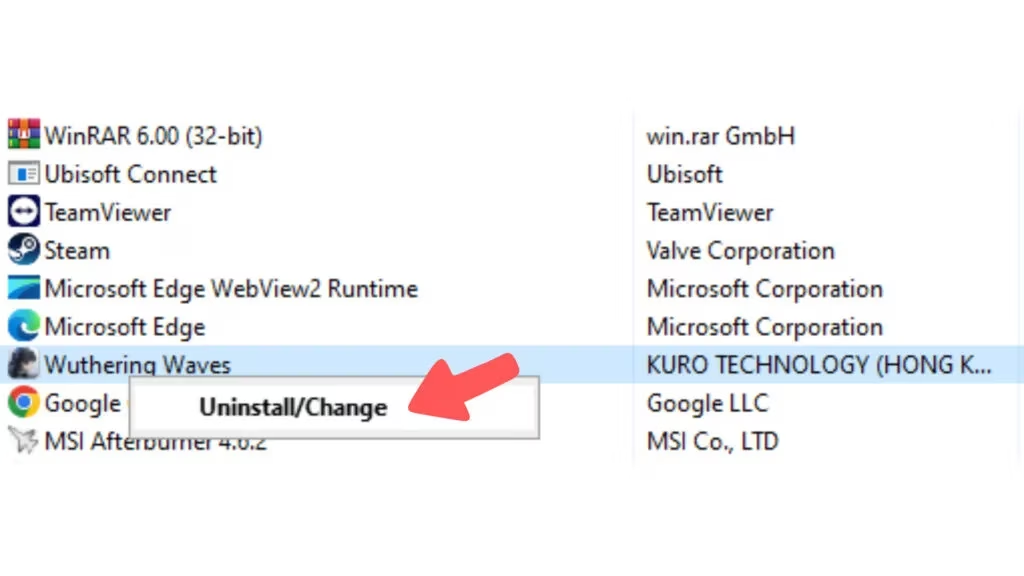
This will trigger the same uninstaller window from Method 1. Just follow the prompts from there, and you're golden!
Method 3: The Direct Folder Delete (The Nuclear Option) 💥
Feeling bold? This method is the most direct but should be used if the other methods fail for some reason. It's like manually cleaning out a closet instead of hiring an organizer.
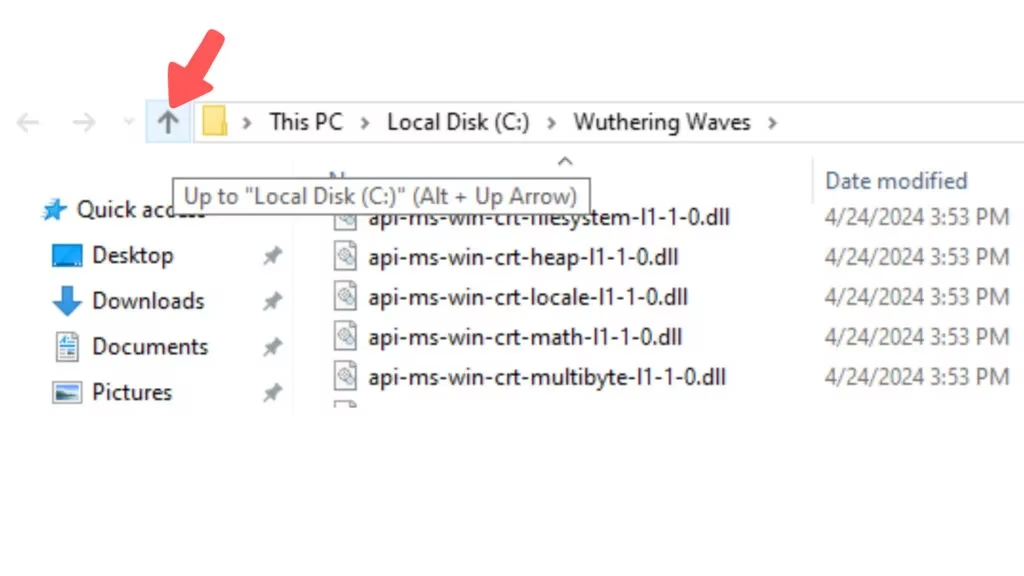
- Locate the Main Folder: Again, start by right-clicking the desktop icon and choosing 'Open file location'. Once in the game's folder, look at the address bar at the top. You need to go up one level. Click the 'Up' arrow button in the toolbar or press
Alt + Up Arrowon your keyboard.
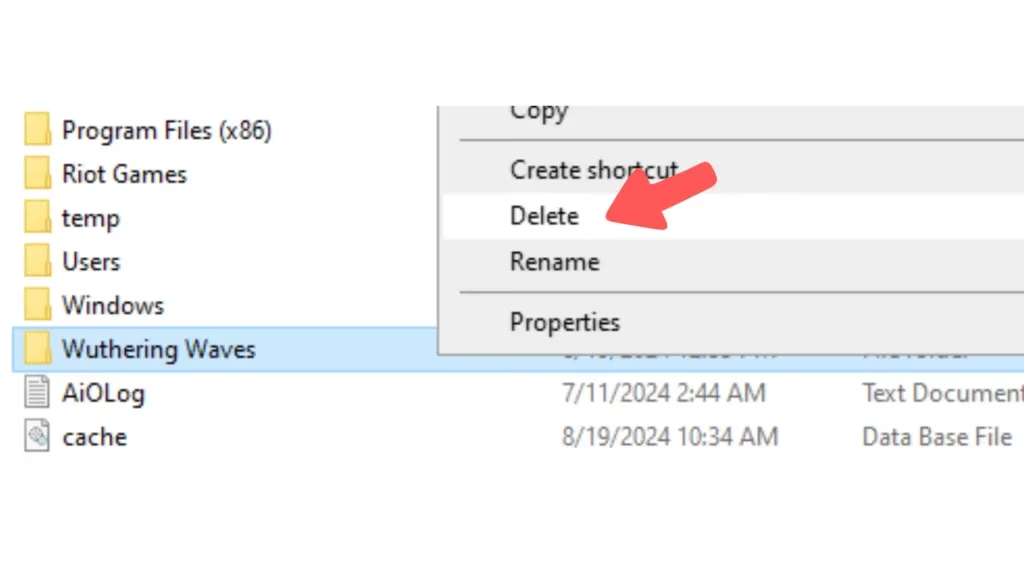
- Delete the Entire Thing: Now you should see the main 'Wuthering Waves' folder. Select it, right-click, and hit 'Delete'. You can also just press the
Deletekey on your keyboard. Confirm any prompts that pop up.
Important Note for 2026 Gamers: 🚨 While this method removes the bulk of the game, it might leave behind small configuration files or save data in your Documents or AppData folders. For a 100% clean removal, Methods 1 or 2 are generally better as they hunt down all associated files.
Which Method Should You Choose? 🤔
| Method | Best For... | Ease of Use | Cleanliness |
|---|---|---|---|
| 1. Desktop Shortcut | Most users, quickest start. | ⭐⭐⭐⭐⭐ | ⭐⭐⭐⭐⭐ |
| 2. Control Panel | When shortcuts are gone, or you prefer system tools. | ⭐⭐⭐⭐ | ⭐⭐⭐⭐⭐ |
| 3. Folder Delete | A quick fix if uninstallers are broken. | ⭐⭐⭐ | ⭐⭐ (may leave traces) |
Personally, I always go with Method 1 if I can. It's built for the game and feels the most complete. Method 2 is my reliable backup. I only use Method 3 as a last resort.
And there you have it! Three simple ways to say 'see you later' to Wuthering Waves and reclaim that precious SSD space. Whether you're making room for the next big game or just taking a digital detox, I hope this guide made the process a breeze. Happy gaming (or un-gaming)! 🎮➡️🗑️