Wuthering Waves version 1.2 finally delivered one of the most requested features from the community: 120 FPS support on PC. However, Kuro Games did not make the option available to everyone. The feature arrived with strict hardware requirements, meaning only a select group of PC configurations can actually run the game at 120 frames per second. For other players, the setting either does not appear or remains locked. That decision created plenty of discussion, but it also gave the player base a clear checklist to consult before diving into the graphics menu.

According to Kuro Games' release notes for version 1.2, the 120 FPS option is exclusive to the PC client. Mobile devices and consoles are not included in this rollout. Even on PC, both the graphics card and the processor must meet specific requirements. A powerful GPU alone is not enough. The CPU also has to be on the approved list. This dual requirement explains why some players with high-end graphics cards still cannot enable 120 FPS.
Supported Graphics Cards
The GPU list covers Nvidia RTX 30-series, RTX 40-series, and selected AMD Radeon RX 6000 and RX 7000 series models. Laptop versions of the same cards are also included.
| Brand | Supported GPUs |
|---|---|
| Nvidia | RTX 3060, 3060 Ti, 3070, 3070 Ti, 3080, 3080 Ti, 3090, 3090 Ti, 4050, 4060, 4060 Ti, 4070, 4070 SUPER, 4070 Ti, 4070 Ti SUPER, 4080, 4080 SUPER, 4090 D, 4090 |
| AMD | RX 6750 GRE, 6700 XT, 6750 XT, 6800, 6800 XT, 6900 XT, 6950 XT, 7600, 7600 XT, 7700 XT, 7800 XT, 7900 GRE, 7900 XT, 7900 XTX |
Supported Processors
The CPU whitelist is much longer than the GPU list. It includes Intel Core i5, i7, and i9 chips from several generations, plus Xeon workstation processors. AMD's list covers Ryzen 7, Ryzen 9, and Threadripper models. Both laptop and desktop variants are represented.
Intel Laptop CPUs
-
i5: 1240P, 1250P, 12500H, 12600H, 12650H, 13500H, 13600H, 13450HX, 13500HX, 13600HX, 14450HX, 14500HX
-
i7: 1260P, 1270P, 10870H, 10875H, 11800H, 11850H, 12600H, 12650H, 12700H, 12800H, 12800HX, 12850HX, 13620H, 13705H, 13700H, 13800H, 13650HX, 13700HX, 14650HX, 14700HX
-
i9: 9880H, 9980HK, 10885H, 10980HK, 11900H, 11950H, 11980HK, 12900H, 12900HK, 12900HX, 12950HX, 13900H, 13905H, 13900HX, 13950HX, 13980HX, 14900HX
Intel Desktop CPUs
-
i5: 12600KF, 12600K, 13400T, 13400F, 13400, 13490F, 13500T, 13500, 13600T, 13600, 13600KF, 13600K, 14400T, 14400F, 14400, 14490F, 14500, 14600T, 14600, 14600KF, 14600K
-
i7: 6900K, 7820X, 9800X, 10700KF, 10700K, 11700KF, 11700K, 12700T, 12700F, 12700, 12700KF, 12700K, 13700T, 13700F, 13700, 13700KF, 13700K, 13790F, 14790F, 14700T, 14700F, 14700, 14700KF, 14700K
-
i9: 7900X, 9820X, 9900X, 9920X, 9940X, 9900KF, 9900K, 9900KS, 10850K, 10900KF, 10900K, 10900X, 10920X, 10940X, 11900KF, 11900K, 12900T, 12900F, 12900, 12900KF, 12900K, 12900KS, 13900T, 13900F, 13900, 13900KF, 13900K, 13900KS, 14900T, 14900F, 14900, 14900KF, 14900K, 14900KS
-
Xeon: W5-3425, W5-3525X, W7-3445, W7-3455, W7-3465X, W9-3475X, W9-3495X
AMD Laptop CPUs
-
Ryzen 7: 4800U, 4800H, 5700U, 5800U, 5800H, 5800HS, 6800U, 6800H, 6800HS, 7735H, 7745HX, 7840U, 7840H, 8840U, 8840H, 8845H
-
Ryzen 9: 4900H, 4900HS, 5900HS, 5900HX, 5980HS, 5980HX, 6900HS, 6900HX, 6980HS, 6980HX, 7845HX, 7940H, 7940HX, 7945HX, 8945H
AMD Desktop CPUs
-
Ryzen 7: 1700X, 1800X, 2700, 2700X, 3700, 3700X, 3800X, 3800XT, 4700G, 5700G, 5700GE, 5700X, 5800X, 5800X3D, 7700, 7700X, 7800X3D, 8700F, 8700G
-
Ryzen 9: 3900X, 3900XT, 3950X, 5900X, 5950X, 7900, 7900X, 7900X3D, 7950X, 7950X3D
-
Threadripper / Threadripper Pro: 1900X, 1920X, 1950X, 2920X, 2950X, 3960X, 3970X, 3945WX, 3955WX, 3975WX, 5945WX, 5955WX, 5965WX, 5975WX, 7960X, 7970X, 7980X
How to Enable 120 FPS in Wuthering Waves
If a PC meets the requirements above, the process is straightforward.
-
Launch Wuthering Waves and log in to the account.
-
Open the Settings menu.
-
Navigate to the Graphics tab.
-
Under Custom, change the Frame Rate option to 120 FPS.
-
Apply the change and return to the game.
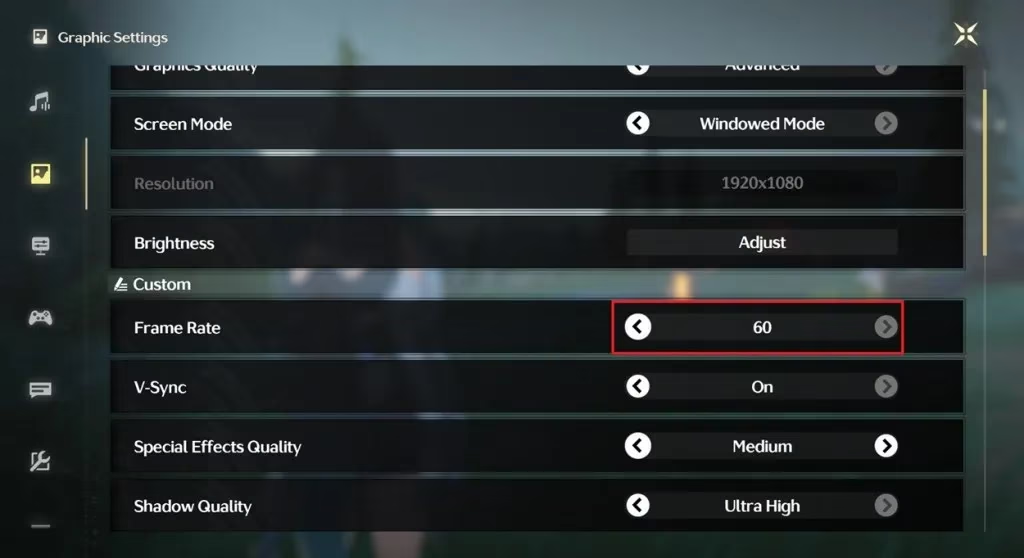
If the 120 FPS option is greyed out or missing, the PC likely does not meet the whitelist. Players can update their GPU drivers, close background applications, and make sure a laptop is plugged into power, but those steps will not override a CPU that is not supported. Kuro Games tied the feature to specific hardware for stability reasons.
At a Glance
| Requirement | Details |
|---|---|
| Platform | PC only in version 1.2 |
| GPU | Selected Nvidia RTX 30/40 series and AMD RX 6000/7000 series |
| CPU | Specific Intel Core, Xeon, AMD Ryzen, and Threadripper models |
| How to enable | Settings > Graphics > Frame Rate > 120 FPS |
| Mobile and console | Not supported in the version 1.2 rollout |
Why the Restriction?
Running Wuthering Waves at 120 FPS is not just about raw graphics power. The game's combat system, open-world traversal, and fast-paced animations all rely on the processor as well. If either the GPU or CPU falls below the required threshold, frame pacing can suffer. Instead of letting every PC attempt 120 FPS and risk a poor experience, Kuro Games chose a conservative whitelist. That approach disappointed some players, but it also prevented unstable performance on hardware that could not handle the load.
What Players Should Know in 2026
By 2026, Wuthering Waves has received many updates beyond version 1.2. The original 120 FPS whitelist remains a useful reference point, but players should always check the current in-game graphics menu and the latest patch notes. Kuro Games may have expanded support to additional devices over time. If a PC was not on the version 1.2 list, it is still worth checking after major updates. If the option appears, the hardware is now supported. If it does not, the restriction is likely still in place.
For players who can enable 120 FPS, the difference is noticeable. Movement feels smoother, combat animations look cleaner, and camera panning becomes less blurry. For players who cannot, 60 FPS remains a stable and enjoyable way to play. The most important step is to verify the hardware against the official list before expecting the option to appear.
In short, Wuthering Waves 120 FPS support in version 1.2 was a targeted rollout, not a universal upgrade. The feature rewards players with specific Nvidia, AMD, and Intel hardware combinations. Everyone else has to wait, upgrade, or stick with 60 FPS. It is a reminder that in modern gacha games, high frame rates often depend as much on the CPU as they do on the graphics card.