Wuthering Waves Version 3.2: “Resolution to Illuminate Shadows” not only brought an increase of content but also allowed a large visual upgrade to the game as a whole. The addition of the Render Distance slider for PC Users, High Quality option for Supported Mobile devices, and Cleaning Options for Desktop Users means now is the time to re-evaluate your settings. If you have been looking for ways to improve the Graphics of Wuthering Waves without turning the game into a stutter-fest; this guide will help give you the keys to improving your graphics on PC, Mobile, and MAC.
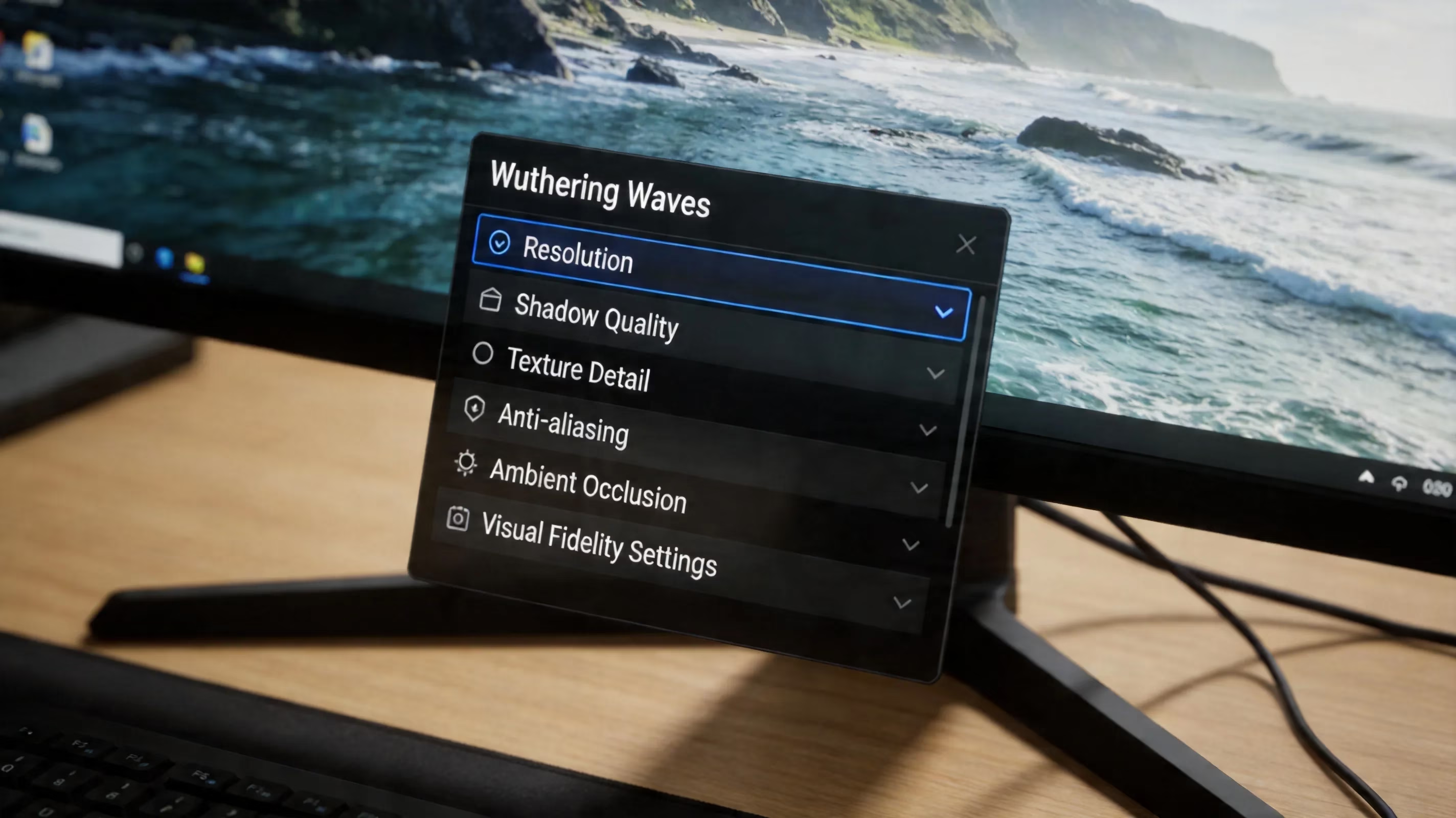
Best Wuthering Waves Graphics Settings
Summary: Before getting into platform-specific tweaks; it is important to know which settings have the greatest visual effect. The major visual-impact (settings) in Wuthering Waves are in the following order; Render Distance, Shadow Quality, Anti-Aliasing, Post-Processing, Texture Quality, & Upscaling/Sharpness. V-Sync & FPS Cap do not actually improve image quality; but they definitely change how the game looks; when moving.
Resolution: Resolution should be set to native as much as possible; unless you are intentionally using an upscaler. Lower internal resolution to less than 100% will cause the image to look soft/smeared and sharpness alone will not fix it entirely. Your FPS Cap should also be set to your display refresh rate (60Hz, 120Hz, or whatever your panel is capable of); as uncapped FPS will contribute to heat and load with little real benefit.
Shadow Quality: Shadow Quality is one of the highest graphical settings in Wuthering Waves. Dropping from Ultra settings to Medium with mid-range hardware can save approximately 10%-15% of your frame budget without losing much of what you see while playing. For anti-aliasing, TAA (Temporal Anti-Aliasing) is the default and works well for motion, but can produce ghosting on smaller details; FXAA (Fast Approximate Anti-Aliasing) has less impact on performance and looks good while moving, but produces more jagged edges.
Another area that you can easily cut back on is the amount of post-processing. Motion blur, depth-of-field, and chromatic aberration take away from performance, and many players will at least partially disable them anyway; if your machine isn’t a top-of-the-line model these features will likely not be employed at all.
You should also take an additional look at upscaling. Wuthering Waves has FSR support (FidelityFX Super Resolution), and using either Quality or Balanced settings takes a significant hit to performance while maintaining a fairly decent amount of clarity. When it comes to V-Sync (Vertical Sync) you’re almost always better off without V-Sync and instead have a manually capped frame rate; V-Sync introduces input delay and, in some cases, causing stutter if you have trouble keeping consistent frame pacing.
Improving Graphics Settings for Wuthering Waves on PC
If you are playing Wuthering Waves on PC, please start with your GPU driver first to be absolutely sure you are running the latest driver from NVIDIA (Game Ready Driver) or AMD (Adrenalin) as they routinely fix bugs and optimize games that use Unreal Engine, and if your driver has not been updated in a few months you may be missing out on performance benefits of Vulkan and DirectX 12 in Wuthering Waves.
Installing Wuthering Waves on a solid state drive (SSD) also greatly improves performance when installing on HDD drives. When you are playing the game, the textures are constantly streamed in as you walk around the game; however, if the hard drive is slow, this may result in pop in or have a delay in the load of the asset. Also, it may cause annoying little micro stutters that
all of the various graphic presets will not solve.
If you are using NVIDIA Control Panel, you should make the following changes:
-
Power Management Mode: Set it as Prefer Maximum Performance.
-
Texture Filtering - Quality: Use High Performance.
-
Low Latency Mode: Set as Ultra.
-
Shader Cache Size: Set to Unlimited.
By making the above changes, the clocks are more stable, render queue delay is lower, and shader recompilation stutter will be eliminated with each session.
If you are using AMD Adrenalin, the settings that should be made are quite different from the settings made for NVIDIA Control Panel. Radeon Anti-Lag will help synchronize CPU to GPU pacing to make combat feel faster, even in cases where your RPS will not greatly improve. If you use Image Sharpening at around 10-20%, it will work well with what you see in the game to sharpness up images without overly making the edges of the images look noisy. If you are using an RDNA 3 or an RDNA 4 video card, it is a good idea to enable Anti-Lag+, which will allow you to achieve lower latency when you are playing games that are based on the Unreal Engine.
In addition to the previous points, you should also ensure that you have the correct settings in Windows. Specifically, you should enable Hardware-Accelerated GPU Scheduling by going to Settings → Display → Graphics → Default Graphics Settings. Doing this will help to reduce the CPU overhead for the RTX 20 and newer and the RDNA 2 and newer video cards. Also, if you are wondering if your processor is going to be down clocked while you are exploring the game, you should ensure that your power plan is set to High Performance, and it is a good idea to disable the Xbox Game Bar as part of your cleanup if you are not using it. ### Mid-Range PC Settings
For a mid-range system, such as with an RTX 3060, RTX 4060 or RX 6700 XT paired to a current generation CPU and you'll usually find your sweet spot is between 60 and 120 FPS at 1080p (also referred to as Full HD).
A good example of a mid-range setup setting is below:
-
Set Texture Quality to High as long as your Vram usage is less than about 6Gb.
-
If you see a stutter in the open world when you walk around, then drop the textures to Medium.
-
Set your Shadows to Medium, use TAA and have your Post-Processing set to Low.
-
Set your Render Distance to Far not to Farthest.
The last point is especially important. This was introduced with Version 3.2 and from Kuro's own notes, using the Farthest setting has a very high GPU cost. For mid-range systems, using the Far setting allows you to see most of the visual benefits without taking the same performance hit.
Using FSR with the Quality setting will typically allow you to keep your texture detail higher and you'll generally notice this more than the slight blurriness introduced by the FSR setting. The FSR adds a slight blurriness that is very little in-game / combat situations.
High-End PC Settings
If you have a setup with something like an RTX 4080, RTX 4090 or RX 9700 XT and up, you have the ability to achieve much higher settings such as 1440p or even 4K with most controls set closer to the highest level setting that your graphics card allows you to do.
When using the Farthest Render Distance will allow you to see the scale of the environment and to accomplish this particularly well in the Lahai-Roi area and in any other large open area. The most notable difference in the image quality when playing via Shadow quality on Ultra, TAA enabled and Postprocessing set to Medium or High is the overall appearance of the image as if it were taken from a movie.
Alternatively, ray tracing has a high performance cost compared to global illumination, and it is not an upgrade to improve visuals for free. Additionally, if you are using OEM drivers from your AMD hardware, you can also experience issues with ray tracing; however, upgrading your drivers to Adrenaline 26.2.2 or later before enabling ray tracing will remedy those problems.
To achieve smooth frame times above 60 FPS for 4K ray tracing, you will generally require a DLSS Super Resolution in Quality mode on NVIDIA GPUs to do so with strong hardware.
Additionally, Wuthering Waves mobile has added a High Quality level to play (as of version 3.2); for mobile users, it is arguably the biggest improvement in quality for the game since its launch, especially in terms of clarity; however, not all devices support this feature. To use High Quality, your phone or tablet must use one of the following CPUs:
| Mobile Hardware Eligible For Competing In High Quality |
|---|
| Snapdragon 8 Elite or Newer, |
| Snapdragon 8s Gen 4 or Newer, |
| MediaTek Dimensity 9400 or Newer, |
| XRing O1, |
| iPhone 15 Pro/iPhone 16 Series |
| iPads with M-Series Processors. |
The Kuro Patch Notes state that supported devices will receive a higher than normal in-game default resolution, regardless of whether or not the user has switched to High Quality, when going to version 3.2.
After this step is done, if you were playing on Android, the next step will be to determine if your device supports the Vulkan API. When enabled, the Vulkan API allows you to free up some of your CPU's computing power by improving the amount of draw calls needed for the game. In addition, enabling Vulkan may even allow you to unlock the Frame Generation function on certain Adreno GPUS, including the 520, 530 and 540 versions. If your device supports this feature, you will see it in the Graphics Menu but, in the case of a DeviceProfile configuration file, it does not appear as long as the device supports the Vulkan API. Specifically, many users in the Android Community have resolved this by adding their GPU profile manually to their Device profile configuration file, particularly for the Adreno 800 series.
The biggest challenge for most users on Mobile is not only to achieve better-looking graphics but to maintain those graphics over time. Flagship chips can easily display High Quality graphics while exploring the world, but over time (e.g. during longer periods of exploration, during boss fights, and when many particles or effects are displayed), they can reach temperatures that may cause the device to throttle back. Once that happens, the clocks on the device will reset, and the user's already "higher" settings may revert back to a lower resolution and/or a reduced frame rate. To keep your game looking great, manage heat by avoiding direct sunlight (if possible) and using a cooler (if you own one). Additionally, if you're playing for a long time, feel free to turn your settings down to a lower level to help maintain the visual quality of the game.
Android Setup Options
For Snapdragon 8 Elite and Dimensity 9400 devices, the most effective way to approach the visuals is fairly simple: set to High Quality, select Vulkan, cap at 60 FPS (or 120 FPS if you have good cooling) for longer play periods, and turn on Frame Generation. If the temperature starts rising, lowering particle or special effects by (1) level will typically reduce the heat enough to still keep up the visuals of the game.
For Snapdragon 8 Gen 2 & Gen 3 phones that do not provide High Quality options, it is typically best to play on Quality only settings with Vulkan enabled and Frame Generation on. If you're able to adjust your resolution settings in-game, set your phone to its native resolution (lowering it will make the image appear blurry).
Also, consider the effect of touch response on your device. Just like on PC, V-Sync generally causes latency to mobile so you should play with it off and rely on the FPS limit option to improve gaming speed/responsiveness.
iOS Setup Options
High Quality is available on iOS for the iPhone 15 Pro, iPhone 16 Series, and M-Series iPads. Under these circumstances, Apple Silicon benefits from the combination of unified memory and greater thermal control. As a result, these devices tend to display High Quality content longer than comparable power Android devices.
While this is true, battery drain is an issue with these devices. According to Kuro’s notes, there may be potential hardware-related problems with some borderline-supported devices that are using High Quality settings. Customers are encouraged to keep their screen brightness at moderate levels and to limit their plugged-in time to no more than two (2) hours to help reduce the risk of overheating or damaging batteries.
For the new high-difficulty combat content Endstate Matrix, a good solution for providing a quality yet stable image on-screen, even during heavy gameplay, is to use TAA (Temporal Anti-Aliasing) and Medium (Shadow Quality).
Remedying Blurry Graphics in Wuthering Waves
If you are finding Wuthering Waves blurry, four potential causes are common; texture streaming, TAA ghosting, the usage of incorrect resolution when using windowed/borderless mode, or game file corruption.
Most often the cause of blur in Wuthering Waves is TAA softness and ghosting. The way TAA operates is by blending sub-pixel information from different frames over time; while this works well when the image is steady, it creates ghosting when characters, grass, or fine geometry are moving. The in-game sharpness slider will be most helpful at a range of 0.3 to 0.6, but in the end, if the resulting image looks bad to you, a viable alternative is to use FXAA (Fast Approximate Anti-Aliasing). Both TAA and FXAA will look much sharper than the original image when things are moving, however, the FXAA will create more aliasing artifacts along (static) edges.
The screen (display) mode will affect the quality of the game/image being played/displayed on the screen. Using exclusive fullscreen is usually best because you have complete control over how the game is rendered. When you use the borderless windowed option, the game is rendered using the Windows Desktop Window Manager, which on certain hardware systems can add some blurriness/softness to the image. If you prefer to use borderless windowed, you can help alleviate the issue by right-clicking on the game's executable, going to Compatibility, and checking the Disable fullscreen optimizations box. This setting on Windows 10 and 11 will allow you to bypass some of the softness caused by the compositor.
If you start with nice, crisp textures but after running for a while they become blurry it is likely a result of low VRAM (Video RAM). Wuthering Waves dynamically manages its streaming pool, which can be affected by any other applications you may have running in the background. If you can, close out any browser windows, Discord video calls, capture tools, and anything else using memory prior to launching the game; doing so should significantly improve your performance.
If your textures still remain blurry after addressing VRAM usage, you should try the Resource Cleanup function added in Version 3.2 on PC and Mac. The Resource Cleanup function clears out cached data that may interfere with texture streaming. Once you perform the cleanup, you can verify the integrity of your game files through the launcher; if there are any corruptions to any of the asset packages, then no matter how much you tweak your settings, the issue will not be solved.
The table below provides a quick overview of Wuthering Waves graphics settings based on hardware tier, focusing on balancing visual quality vs stable performance. The minimum low-end playable preset tries to maintain a steady 60 FPS. The biggest performance gain from using Low Shadow Quality can help you make older, still usable cards like a GTX 1060 or RX 580 much easier to manage in most locations; if you combine Low Shadow Quality with FXAA Anti-Aliasing, and disable Post Processing completely, you should have no trouble managing older GPUs in most scenarios, provided you keep Texture Quality at Medium to avoid exceeding 4 Gb to 5 Gbs of VRAM. The majority of players will choose the recommended spec preset, which is usually in the 1080p resolution category at medium settings with TAA enabled, high texture quality, and Quality setting turned on (for FSR). This will give users a very sharp overall image but with enough headroom left for any high intensity battles that may occur throughout gameplay. Overall, this is considered to be a very good spot for the majority of users.
Frequently Asked Questions Regarding Graphics in Wuthering Waves.
- What settings provide the greatest clarity to the game's image?
Texture Quality and Anti-Aliasing are the two settings that primarily impact how clear the game appears. Having a moderate in-game Sharpen setting (about 0.3 to 0.5) will also help to reduce the TAA Softness. Render Distance has a greater impact on overall detail at long distances than it does to overall clarity at short distances.
- Why does Wuthering Waves look blurry when the game has been set to as high as it can be?
Typically this is due to total VRAM pressure, TAA ghosting, borderless mode scaling methods, or corrupted cached files. Most solutions include tuning the sharpness setting, switching to Exclusive Fullscreen, using Resource Cleanup and verifying the files via the Launcher.
- Should I use Render Distance?
Yes, but only to a certain extent. Setting the Render Distance to far will yield a noticeable improvement visually, and is the best way for the large majority of users who play the game. Setting the Render Distance to farthest is best for high performance devices when there is GPU headroom available after setting all the other options.
- What mobile devices support High Quality?
As of version 3.2, High Quality will be supported on Snapdragon 8 Elite; Snapdragon 8s Gen 4 and newer; MediaTek Dimensity 9400 and newer and XRing O1. For Apple Devices: 15 Pro and 16 series iPhone and M-series iPads support High Quality. Other devices will only be able to use the Standard Quality mode.
Conclusion
Improving the visual quality of Wuthering Waves is not accomplished by maximizing every slider, but instead is accomplished through associating your hardware specifications with the best settings. The 3.2 changes include many useful tools i.e., PC Render Distance, Mobile High Quality Land, and PC & Mac Resource Clean. These tools will greatly enhance your ability to fine tune visual upgrades since prior to 3.2 there were no comparable tools available.
On the PC side, the major benefits will be updating drivers, Applying a proper NVIDIA or AMD profile, FSR or DLSS smartly so you can spend your performance budget on texture and shadow quality, priority. On the mobile device side, adopting Vulkan API, Frame Generation, and new High Quality will allow flagship devices to look much better than before. Ultimately, Smooth play makes all visual
quality better, so achieving consistent 60 FPS combined with good selections of settings will look better than an inconsistent Ultra preset. Happy hunting, Rovers!